
Trade Polymarket sports like a pro exchange
Traderline turns Polymarket sports markets into a classic ladder-trading exchange: decimal odds, one-click backing and laying, live charts, weight of money, and full keyboard control.
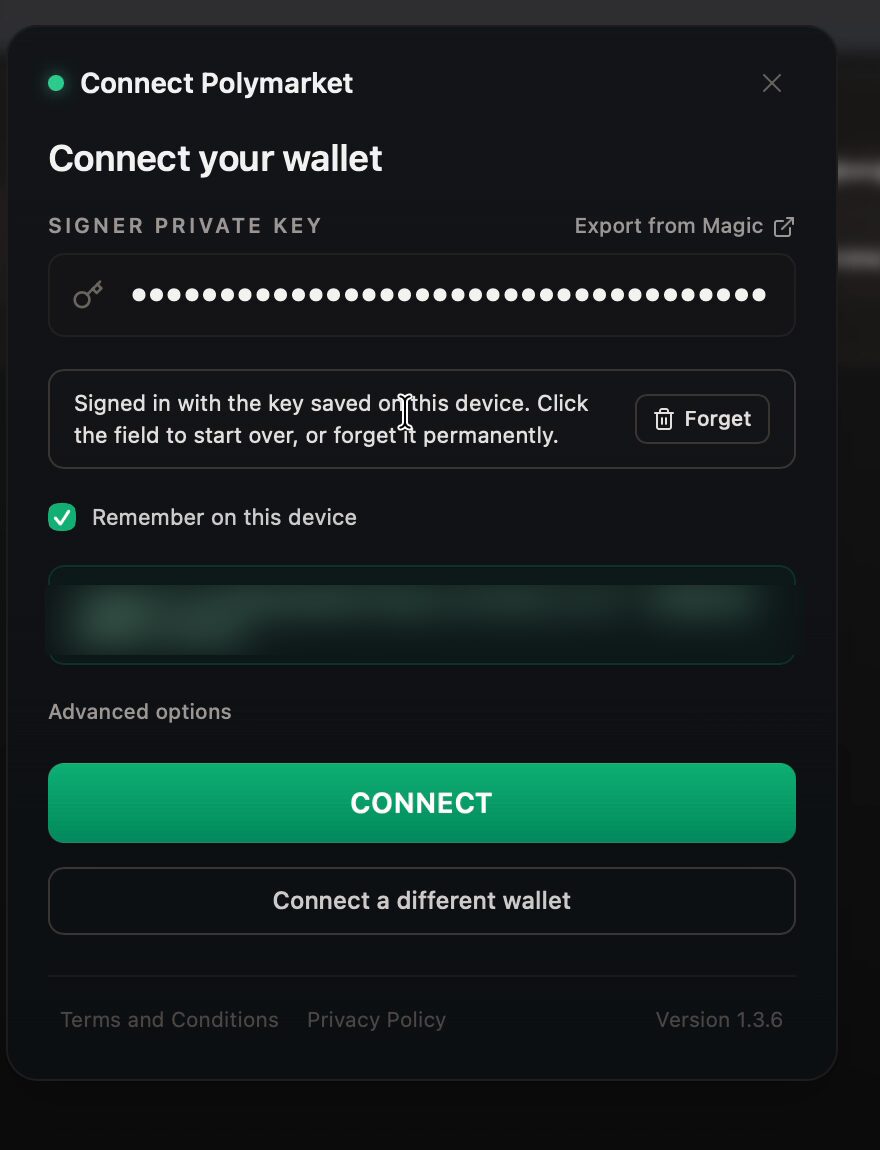
Signing in
Connect once, then one click per session.
- Open TraderlineThe Connect Polymarket window appears over the app.
- Provide your signer keyPaste your signer private key (you can export it from Magic). If you have signed in before, the key saved on this device is filled in for you. Click the field to start over, or hit Forget to remove it permanently.
- Keep "Remember on this device" tickedSo the next session is a single click.
- Check the account previewThe green line confirms which Polymarket proxy wallet you are connecting and your available pUSD balance.
- Press CONNECTOr choose Connect a different wallet to switch accounts. Advanced options are available below.
Finding markets
From any sport to a specific market in three clicks.
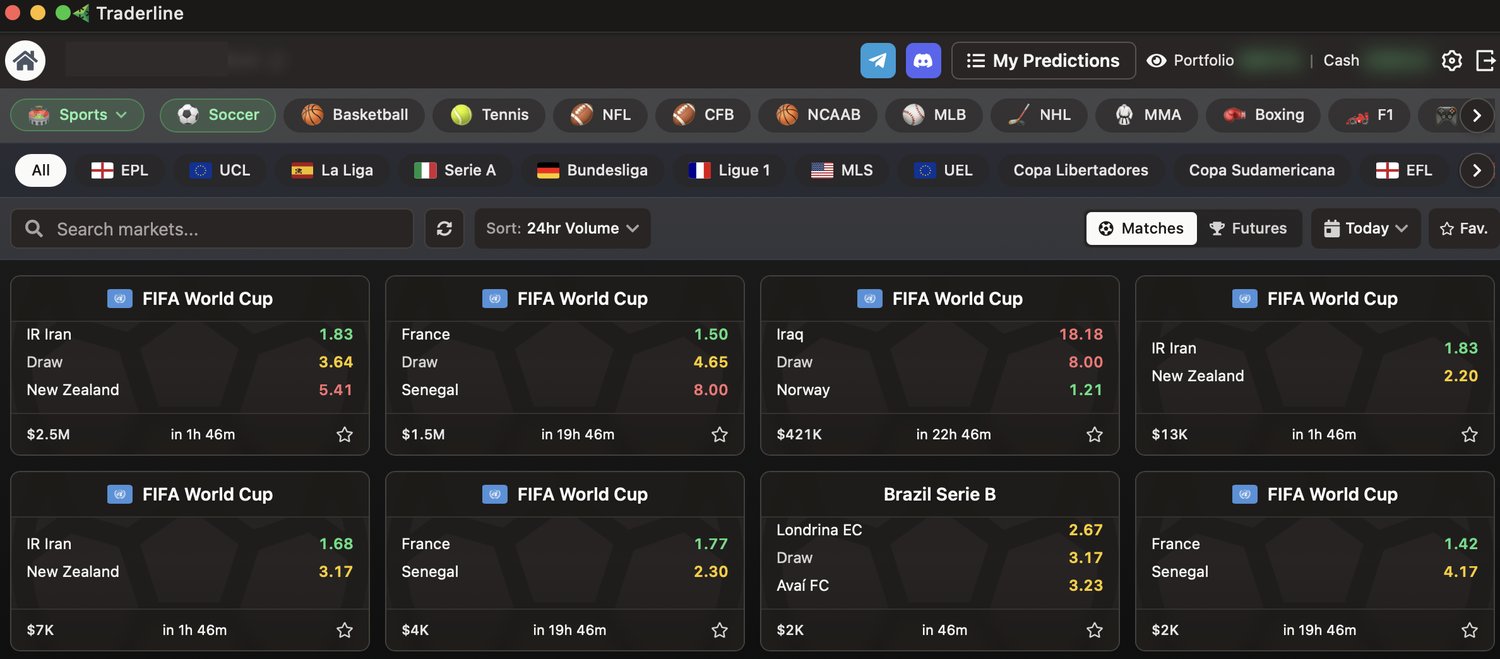
The top bar holds the sports (Soccer, Basketball, Tennis, NFL, MLB, NHL, MMA, Boxing, F1, Esports, Cricket, Golf and more), with a second row of competition filters such as EPL, UCL, La Liga, Serie A or Bundesliga. Use the search field to find any market by name, sort by 24-hour volume, and switch between Matches, Futures (for example, the winner of the competition), a Today filter and your Favourites.
Each event card shows the current decimal odds per outcome, the total matched volume, and either a countdown to kick-off or a red Live tag. The star saves the event to your favourites.
Inside an event
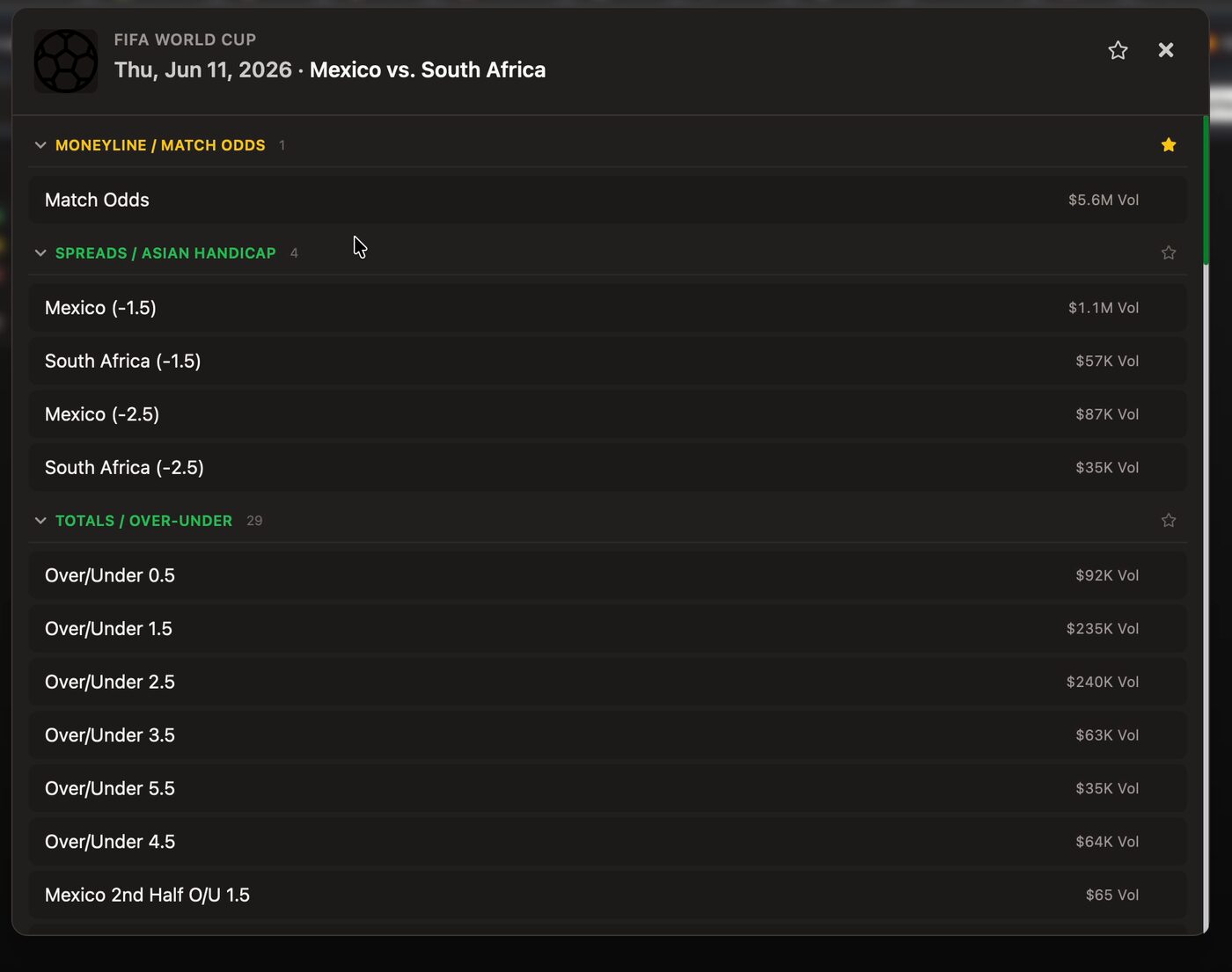
Clicking a card opens the market browser for that event. Markets are grouped: Moneyline / Match Odds, Spreads / Asian Handicap, Totals / Over-Under, halves, and Player Props such as "Alexis Vega: 1+ goals". The volume on the right tells you where the liquidity is. Pick a market to open its ladder.
The ladder
Every control you need to trade one selection, in one resizable window.
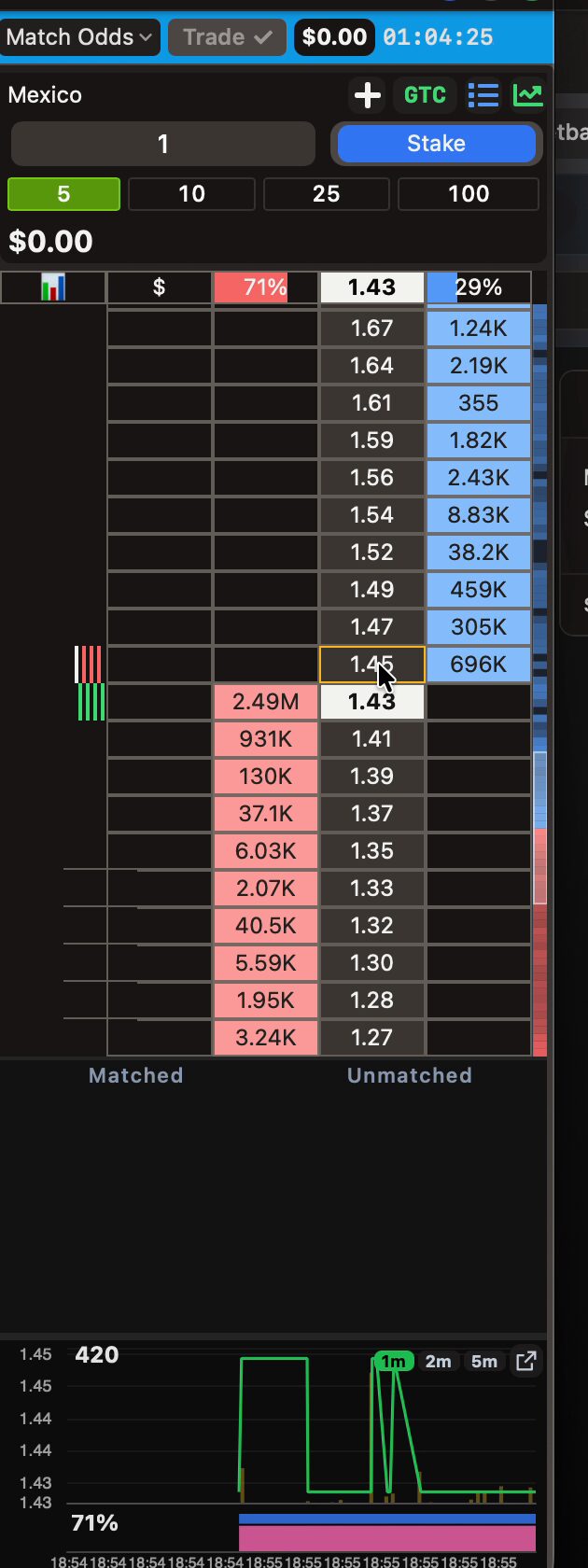 123456789101112
Market bar. Switch market, the Trade button, your net market P&L, and the countdown to kick-off.
Stake controls. Dynamic stake field for any custom amount, quick preset buttons, the Stake / Liability mode toggle and the GTC order chip.
Selection P&L. Two figures: the left shows your profit or loss if this runner wins, the right if it loses.
Weight-of-money header. The split of unmatched money on each side (here 71% vs 29%) around the last traded price.
History column. A tick chart of the most recent traded prices.
P&L column. What you would make or lose by exiting at each price. Click a value to propose that exit. Can display as a percentage.
Lay column. LAY Red side. Click a cell to lay at that price; the figures are the weight of money waiting on the lay side.
Odds column. The price ladder in decimal odds. The white cell marks the last traded price.
Back column. BACK Blue side. Click a cell to back (buy) at that price; the figures are the weight of money on the back side.
Panel toggles. The + opens a ladder for another selection; the list icon shows or hides the order panel; the chart icon toggles the graphs.
Order panel. Your Matched and Unmatched orders for this selection. Toggle it on or off.
Market chart & sentiment. Traded volume, price tendency over time, and the weight-of-money bar.
Pin any window. The pin icon in a window's title bar keeps it on top of every other window. It works on any market window, so you can keep your in-play ladder above the rest of the workspace.
Columns in detail
The default order is History, P&L, Lay, Odds, Back. The three best prices on each side are highlighted so your eyes always find the front of the book. If you prefer the opposite convention, one switch inverts the back and lay colours (Advanced settings), and you can drag columns into any order with a live preview.
The header percentages are the market's mood at a glance. In the screenshot above, 71% of waiting money is on the lay side of Mexico: the market is leaning against them. Watch how that split moves to read sentiment before the price itself moves.
Stakes & modes
Type any amount in the stake field or click a preset. Presets are fully configurable, and you can even double-click a preset inside the ladder to edit it in place.
The coloured button switches the staking mode:
STAKE The amount you put into the order. For a back order, that is what you risk.
LIABILITY The amount you can lose. Essential when laying, where the risk is stake × (odds - 1). Back and lay use different calculations, so pick the mode that matches how you think.
The GTC chip sets the order's persistency (time-in-force) — how long it stays in the market before it is killed. GTC (good 'til cancelled) leaves the order resting until it is matched or cancelled, and any unmatched amount is cancelled when the market turns live. FOK (fill or kill) must match in full immediately or the whole order is cancelled. FAK (fill and kill) matches whatever it can immediately and cancels the rest.
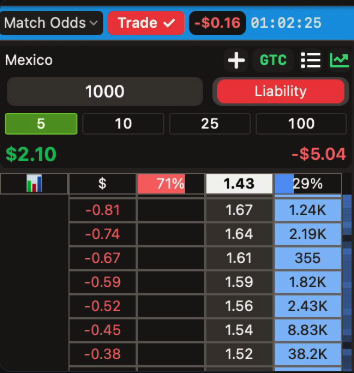
Placing & managing orders
Click to enter. Click again to exit. Hotkeys for everything else.
- Place the orderClick a price in the blue column to back, or in the red column to lay. With Confirm Orders off, the order fires instantly; unmatched amounts wait in the ladder (highlighted) until the market comes to them.
- Watch the P&L column populateOnce you are in the market, every row shows your exact profit or loss if you exited at that price.
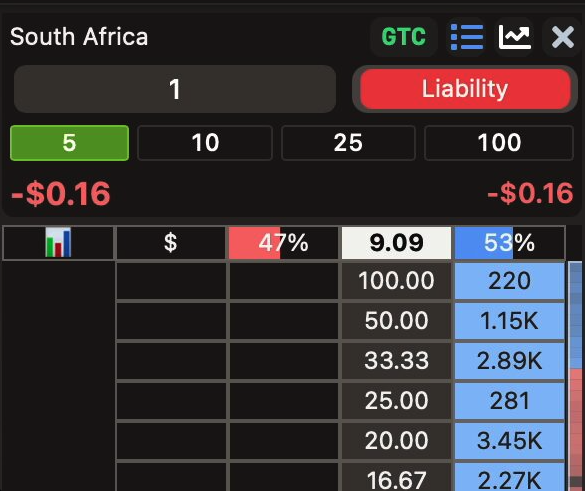
- Propose an exitClick any value in the P&L column to place the closing order at that price, or trade out immediately at the best available price. In the example here, leaving at 1.45 right away would cost -$0.16.
- Cancel anythingClick the × on an unmatched order, or use the hotkeys: X cancels all unmatched orders, L just the lays, and the back-cancel key is yours to define.
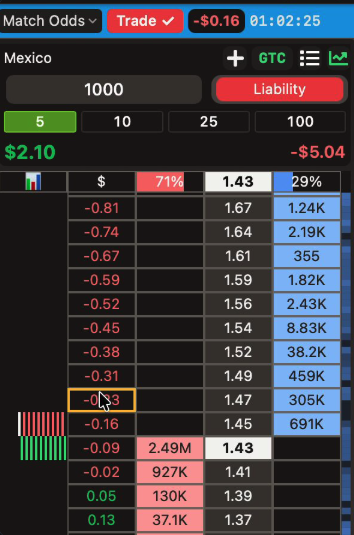
Charts & market sentiment
Volume, price tendency and weight of money, from a mini-chart to a full window.
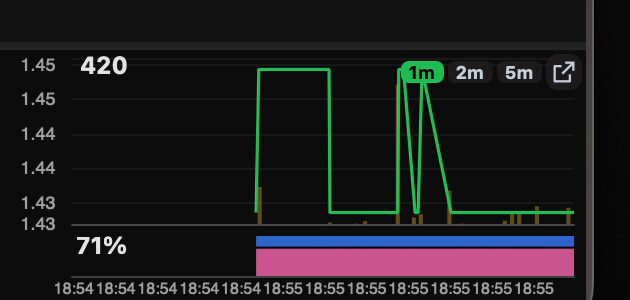
Expand the chart at the bottom of any ladder for a quick read: the highest line flags the largest traded volume so far, the price plot shows the tendency of the odds over time (switch between 1m, 2m and 5m), and the sentiment bar below tracks weight of money. More money against your runner than for it is a signal worth respecting.
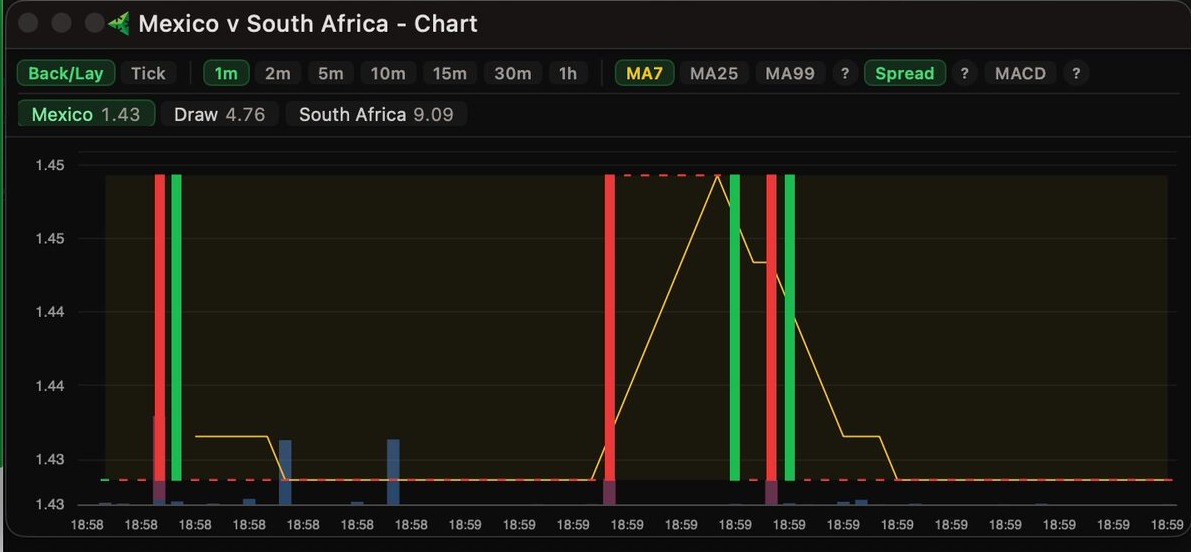
The dedicated chart window goes further: all selections of the market plotted together, minute filters, tendency indicators and additional graph lines you can toggle to make the picture as rich or as clean as you like.
Statistics
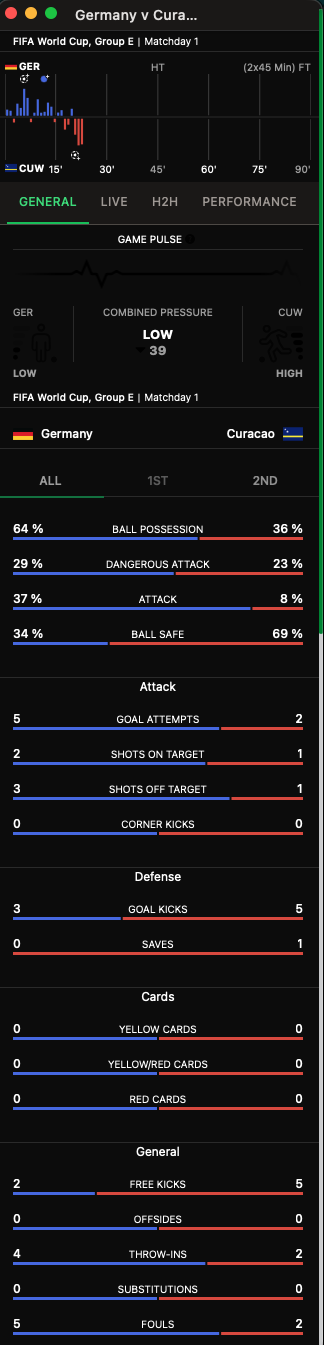
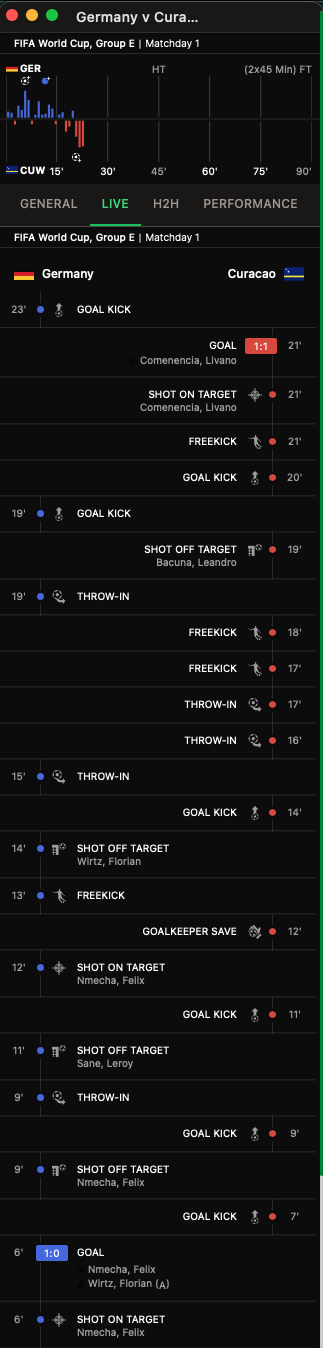
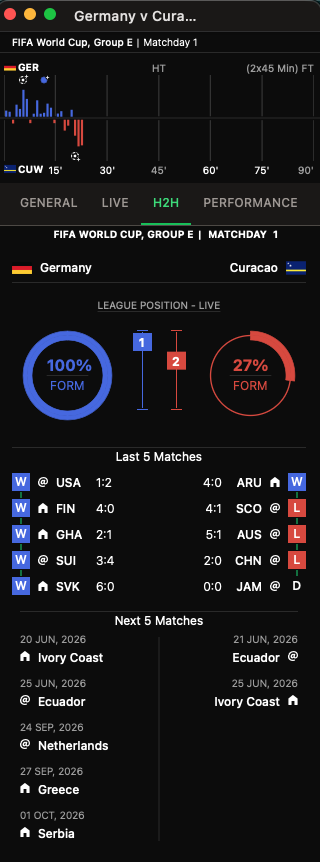
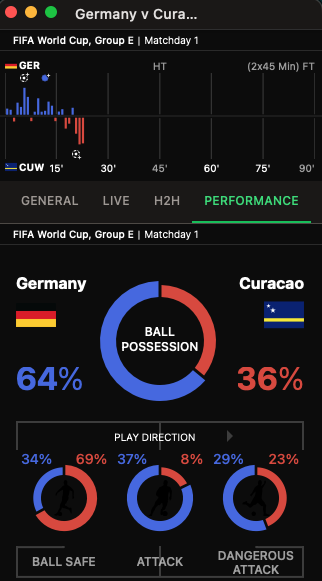
Every market can open its match statistics window, with four tabs that update live once the game is in play, so you can trade the action without a second screen.
The match view
All runners of a market side by side, with every market of the match one click away.
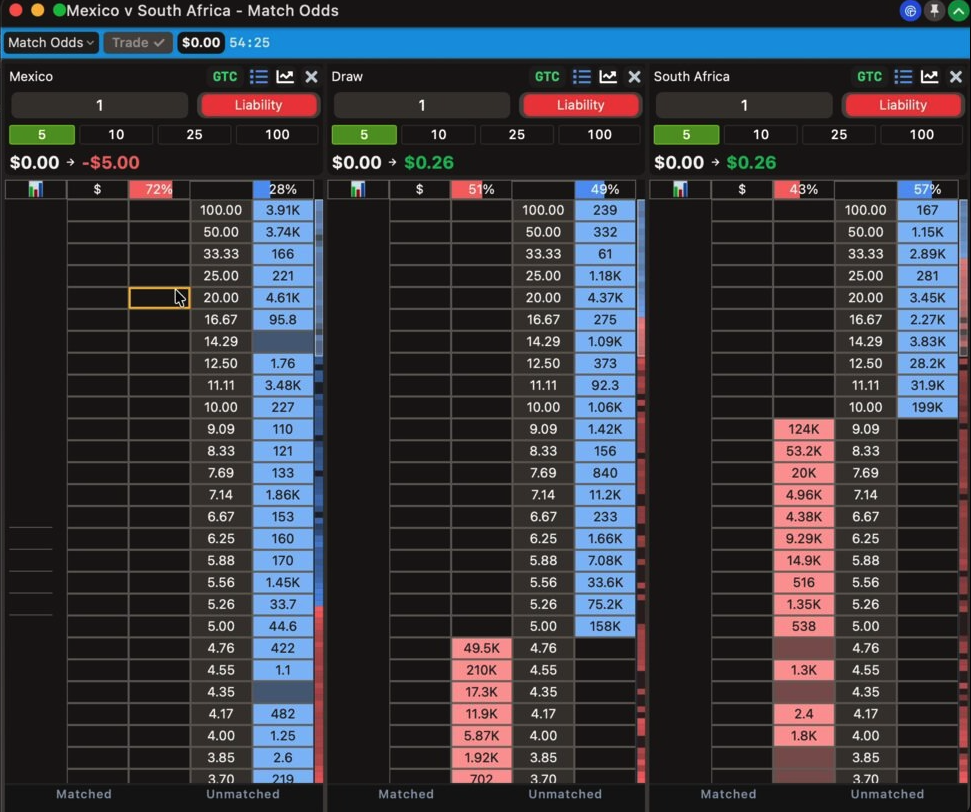
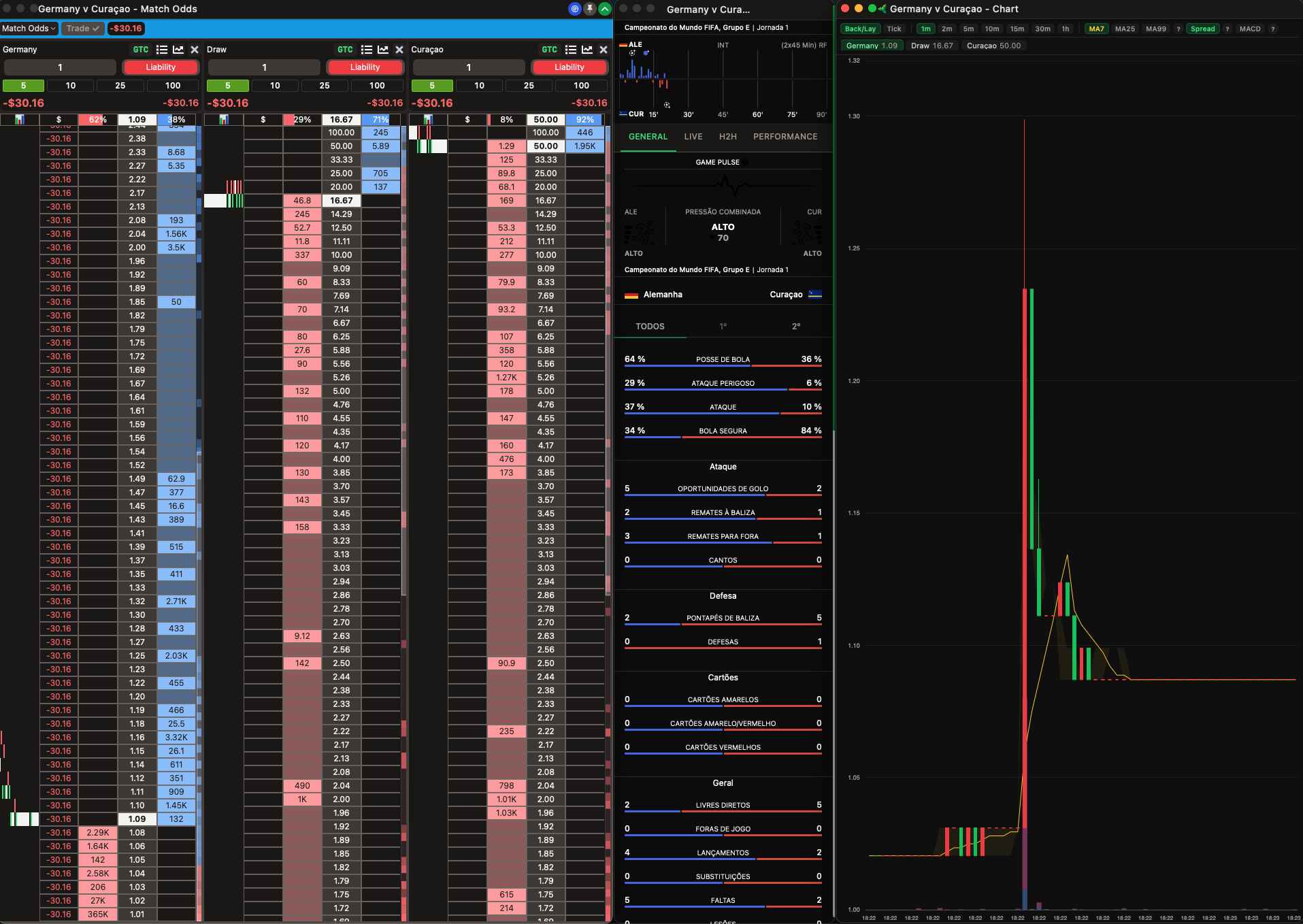
Opening a market from an event card gives you the match view: one window, one ladder per selection, each with its own stake controls, P&L and order panel. Close a ladder you do not need and a + chip appears so you can add it back at any time. With Auto-sort windows enabled, new windows arrange themselves neatly on screen.
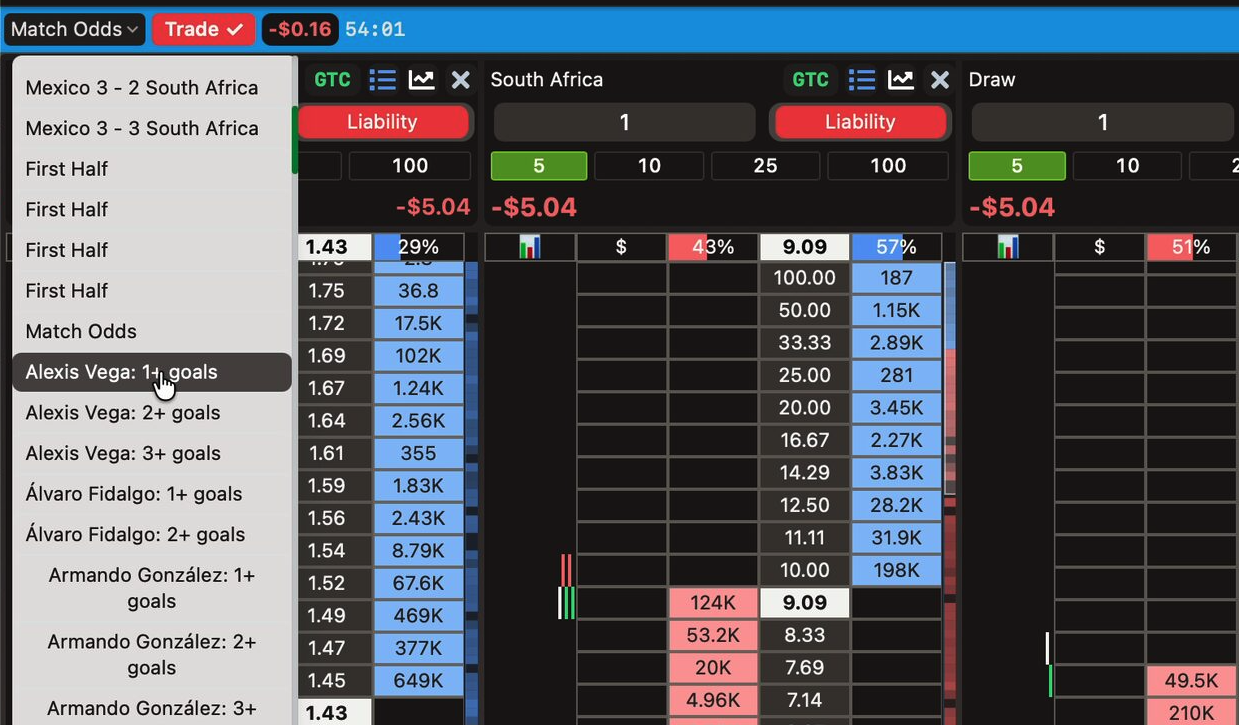
The dropdown in the window's top-left is the market selector: switch this window, or open a second one, to any other market of the same match: correct scores, halves, or a specific player's goals, without going back to the event card.
Trade button & indicators
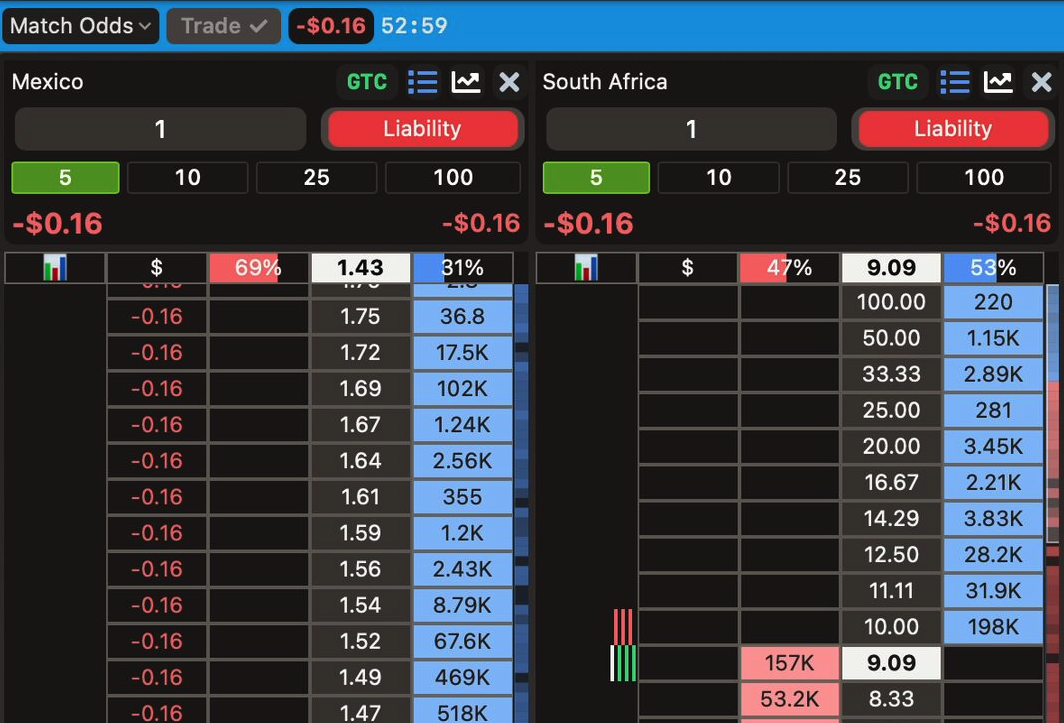
To the right of the market selector sits the Trade button with your current market position value next to it. With no position it stays greyed out at $0.00. As soon as you hold one, it lights up; one click sells your position at market, locking the same P&L across every outcome.
In the example, trading out locked -$0.16 on Mexico: the whole P&L column turns into a flat -0.16, and the position is closed.
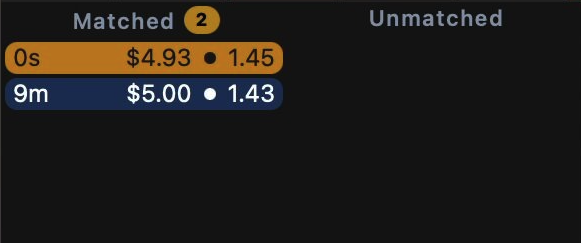
Every order row in the panels below carries a colour:
BLUE · BACK ORANGE · SELL RED · LAY
Each row shows the age of the order, the matched amount and the price. There is a small tooltip on unmatched rows; double-click the value to edit the stake, or hit × to cancel.
Save screen space
Click the green chevron at the top-left of a match window to hide its shared market bar: the market selector, the Trade button, your market P&L and the countdown. Each ladder keeps its own header and controls, so you trade exactly as before with more of the screen given to the book. Click the chevron again to bring the bar back.
My Predictions
Positions, open orders and your full history, one panel away.
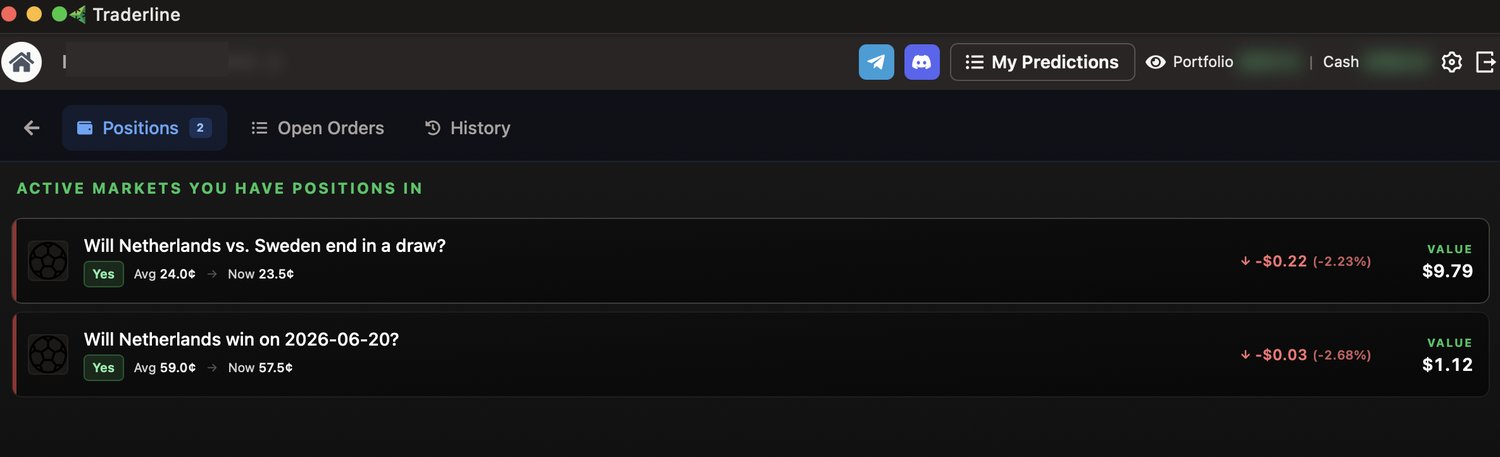
The My Predictions button in the top bar opens three tabs:
| Tab | What you see |
|---|---|
| Positions | Active markets you hold a position in, with side, average entry price and the current price. Clicking one opens its market view immediately. |
| Open Orders | Markets where you have an unmatched order still waiting to be filled. |
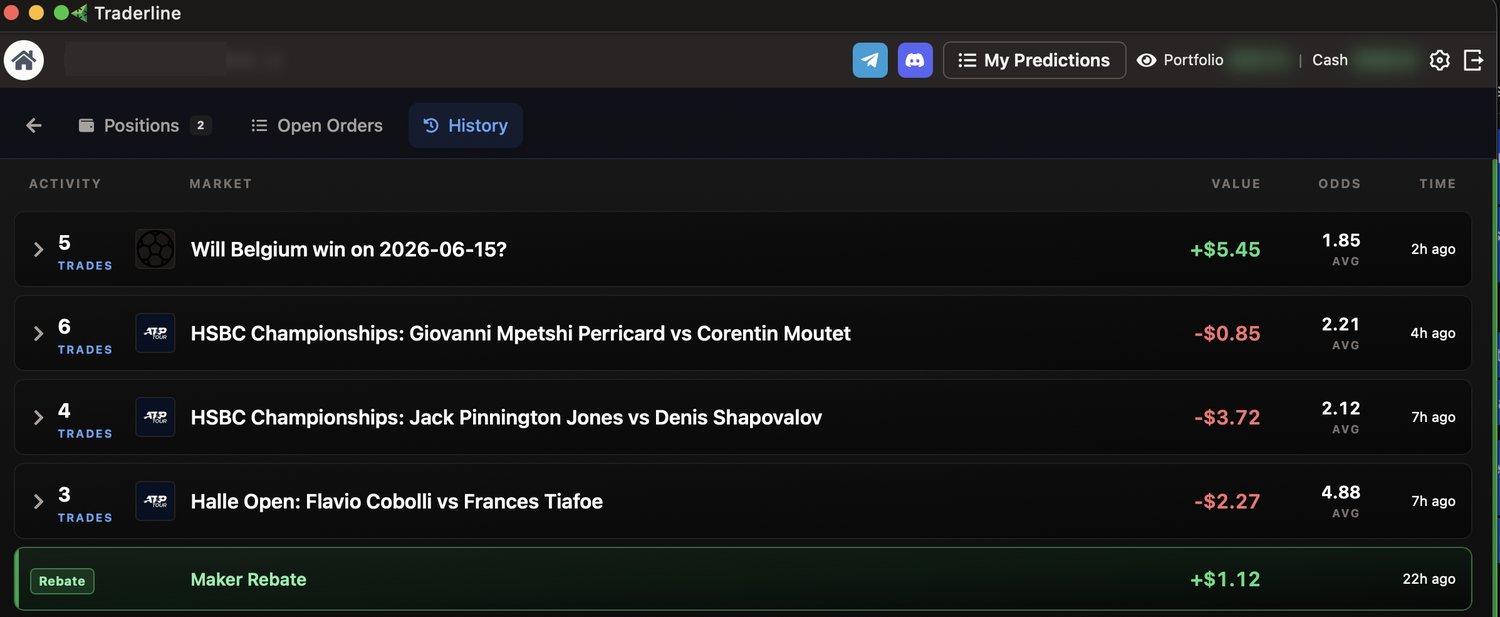
| History | Your past activity grouped by market. Expand a group to see each order's side, share count and price; load more to go further back and judge how many orders you placed, at what average odds, and whether the market was profitable for you. |
Settings
Four tabs: General, Market, Sounds, Hotkeys. Everything updates live.
General
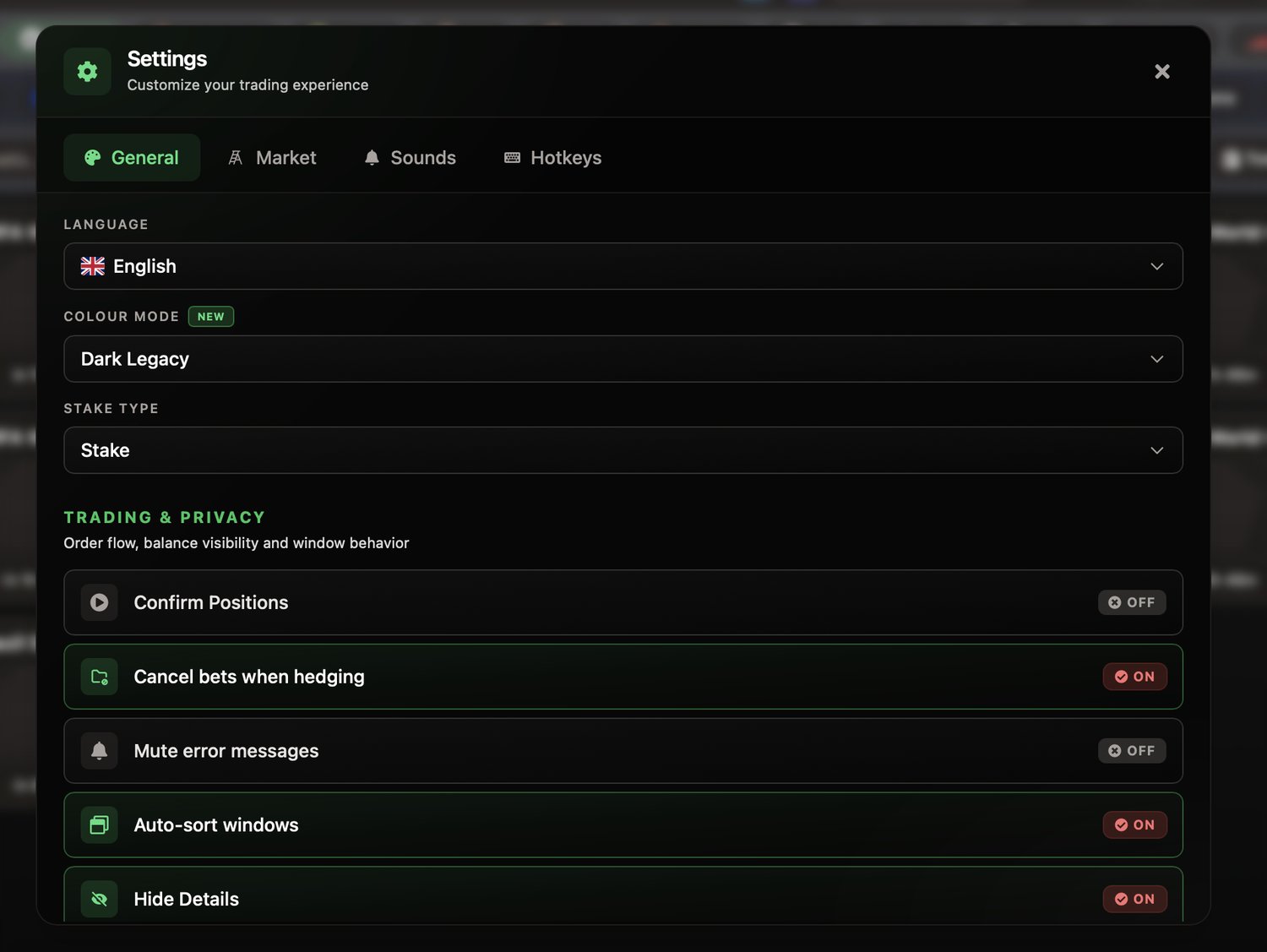
| Setting | What it does |
|---|---|
| Language | Interface language. |
| Colour Mode | The ladder’s colour theme (for example, Bright Legacy). |
| Stake Type | Default staking mode for new ladders: Stake or Liability. |
| Confirm Orders | Adds a confirmation dialog before each order. Off means one-click trading. |
| Cancel orders when hedging | Clicking the P&L column also cancels your other unmatched orders in that market. |
| Mute error messages | Silences error pop-ups. |
| Auto-sort windows | Opening a market from an event card arranges the new windows neatly on screen. |
| Hide Details | Hides your balance and username (see Privacy). |
| Auto-Center Ladder | Re-centres the ladder on the last traded price every couple of seconds while your mouse is away from the market. |
| P&L as % | Shows the P&L column as a percentage instead of currency. |
| Show orders | Shows or hides the order panel under each ladder. |
| Market Chart | Shows or hides the chart at the bottom of the ladder. |
| Orders separated | Splits the order panel and market chart into two containers instead of one. |
| Values bold | Renders ladder values in bold. |
| Shorten numbers | Rounds amounts in the ladder, $1.20 displays as $1. |
Market
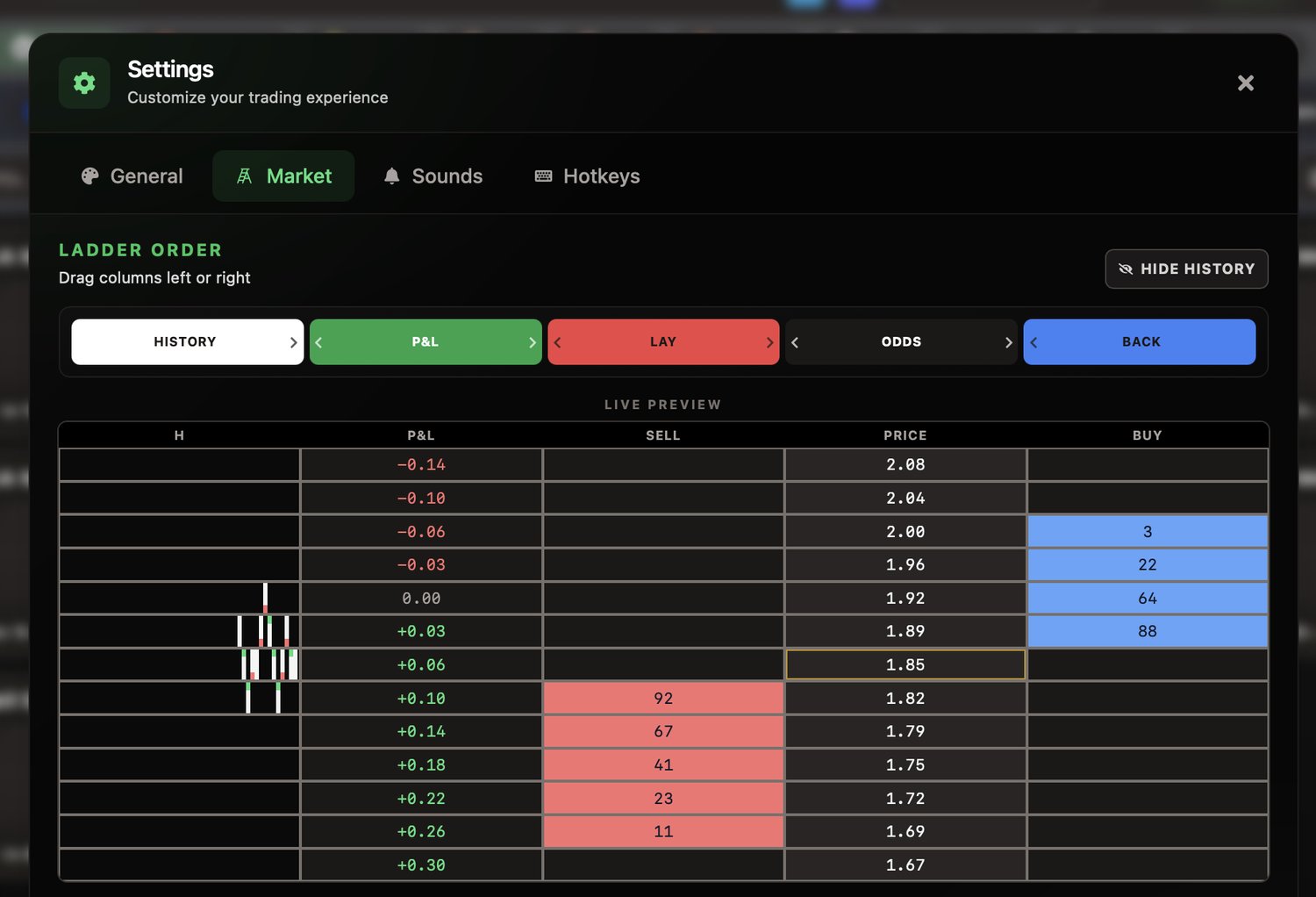
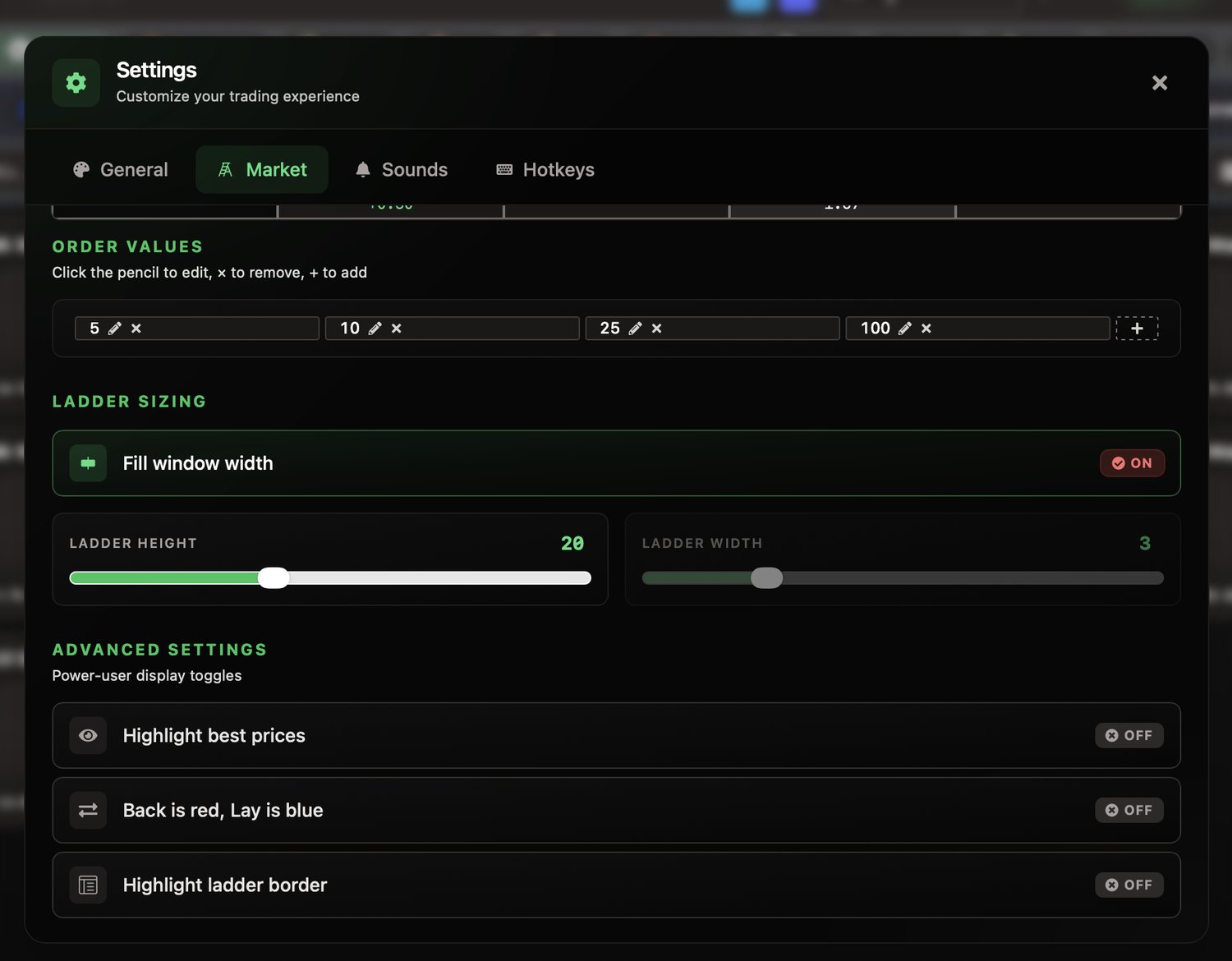
| Setting | What it does |
|---|---|
| Ladder order | Drag columns left or right (or use the arrows) to reorder them; a live preview shows the result instantly. The History column can be hidden entirely. |
| Order stake values | Your preset buttons: pencil to edit, × to remove, + to add as many as you want. Also editable by double-clicking a preset inside any ladder. |
| Fill window width | The ladder stretches to the window's width automatically. |
| Ladder height | Row height in pixels for the ladder cells. |
| Ladder width | Manual column width, available when Fill window width is off. |
| Highlight best prices | Highlights the three best prices on the back side and the three best on the lay side. |
| Back is red, Lay is blue | Inverts the colour convention of the back and lay columns. |
| Highlight ladder border | Draws a stronger border inside the ladder for visibility. |
Sounds
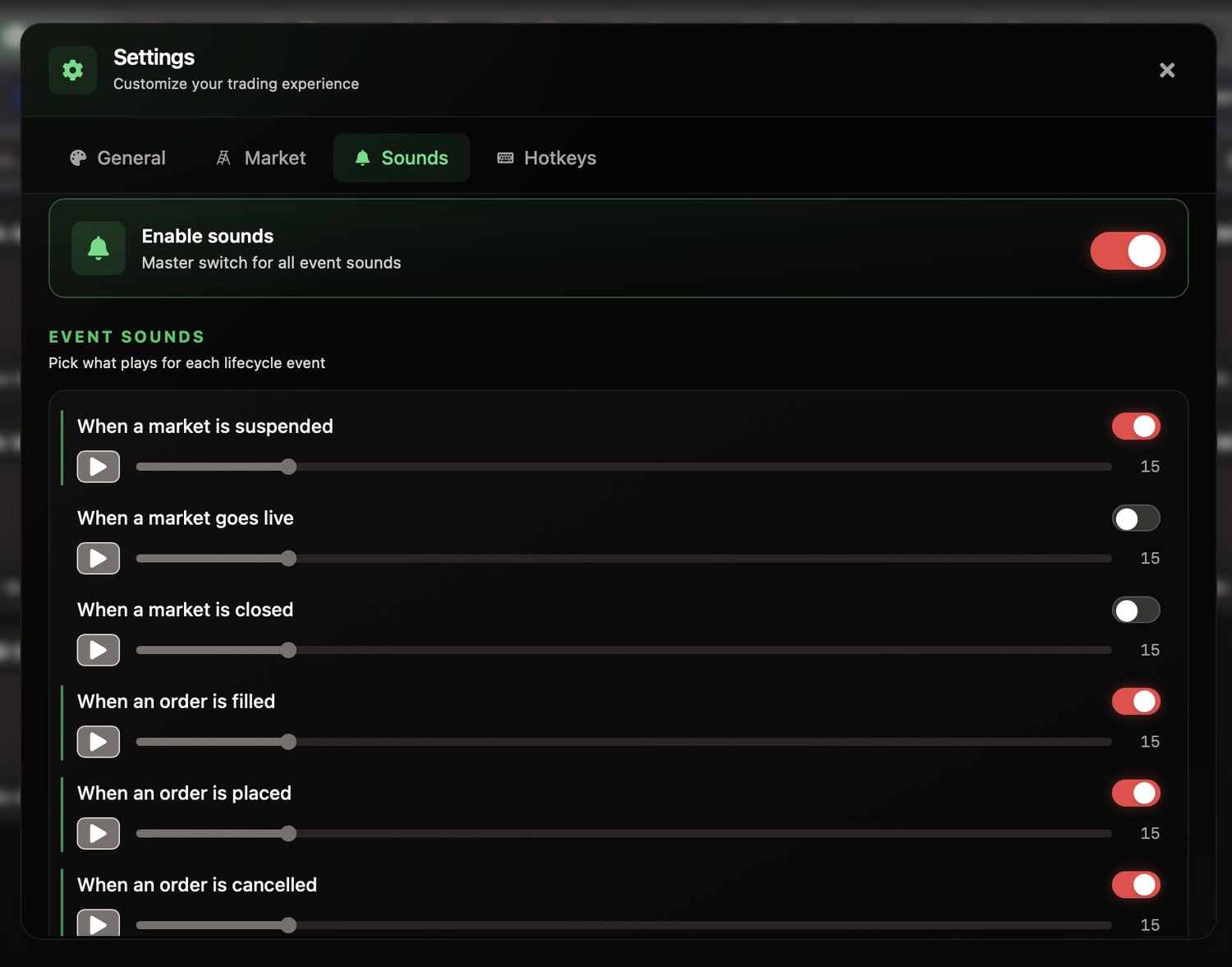
Pick what plays when a market is suspended, goes live or is closed, and when an order is matched, placed or cancelled. The last three are the ones you will hear most often; preview each one with the play button or kill them all with the master switch.
Hotkeys
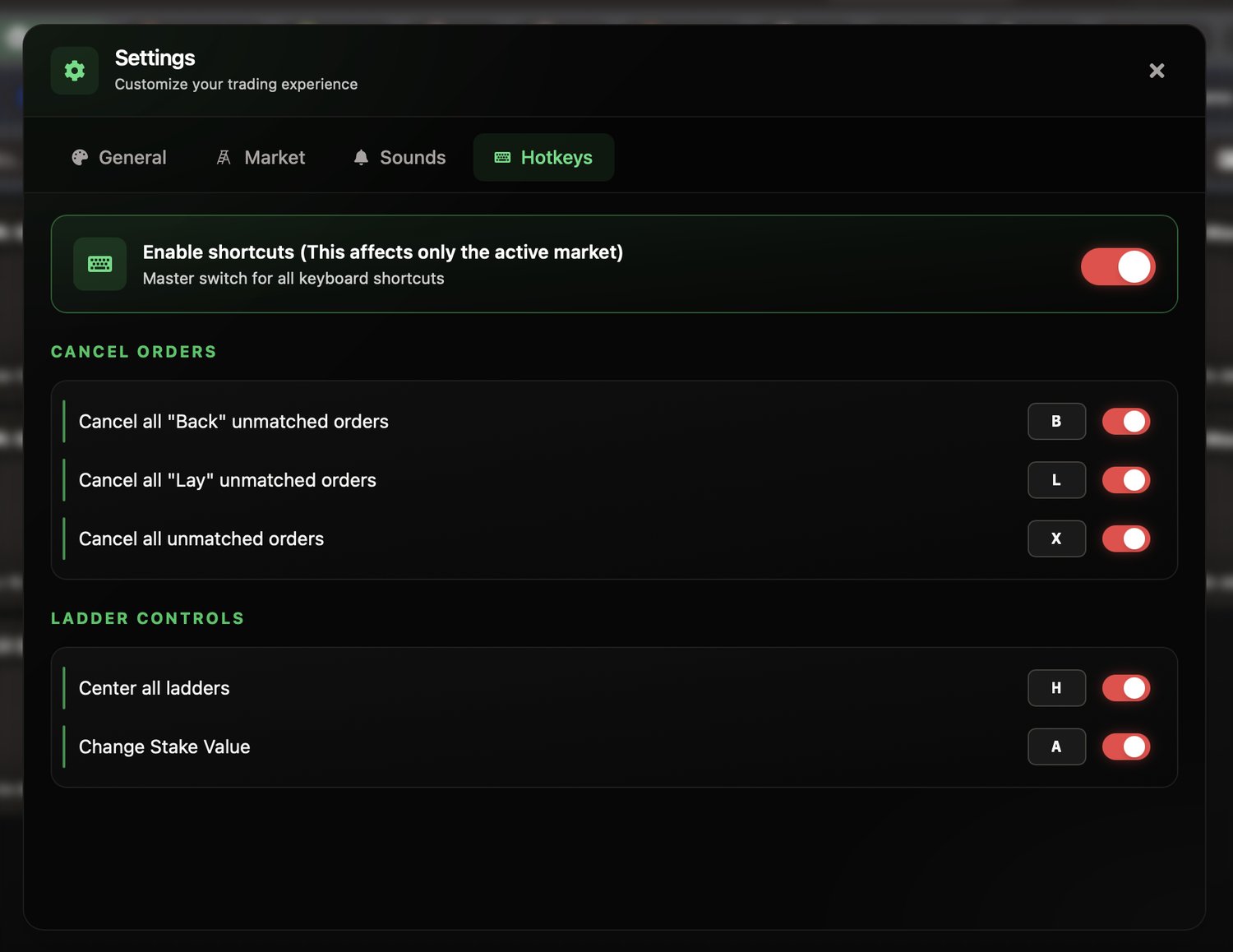
| Action | Default |
|---|---|
| Cancel all "Back" unmatched orders | B |
| Cancel all "Lay" unmatched orders | L |
| Cancel all unmatched orders | X |
| Center all ladders | H |
| Change stake value | A |
Every binding is configurable: click it, press the new key, done. Shortcuts affect only the market in focus, so you will never cancel orders in a window you are not looking at.
Privacy & screen space

Click the small eye icon next to your portfolio value (or use Hide Details in Settings) to blur your balance and username instantly. Combine it with the market bar hidden and panels toggled off and Traderline gets out of the way, leaving you nothing but ladders.
Glossary
- Back (buy)
- An order backing an outcome to happen. Wins stake × (odds - 1).
- Lay
- An order against an outcome, taking the other side. Risk is stake × (odds - 1).
- Sell
- Closing (dumping) an open position, whether it was a back or a lay.
- Stake
- The amount you put into an order.
- Liability
- The most you can lose on an order; the natural sizing mode for lays.
- Last traded price (LTP)
- The price of the most recent matched order, marked white in the odds column.
- Weight of money
- The unmatched amounts waiting on each side of the book; a sentiment gauge.
- Matched / Unmatched
- A matched order has a counterparty and stands; an unmatched order waits in the queue and can be edited or cancelled.
- Trade out / hedge
- Closing a position with the opposite order, locking the same P&L on all outcomes.
- Persistency
- An order's time-in-force, set by the order chip: GTC, FOK or FAK.
- GTC
- Good 'til cancelled: the order rests in the market until matched or cancelled, and any unmatched amount is cancelled when the market turns live.
- FOK
- Fill or kill: the order must match in full immediately, otherwise the whole order is cancelled.
- FAK
- Fill and kill: matches whatever it can immediately and cancels the unmatched remainder.
- pUSD
- The Polymarket USD balance you trade with.
- Tick
- One step on the price ladder.
- Decimal odds
- 100 divided by the Polymarket price in cents. 70¢ = 1.43.